Blueprints and the Studio
Make your own things, cube by cube.
Tavi: A chair, a hat or a whole new you: they all start as a blueprint.
What it is
The Studio is the voxel editor: a grid of little cubes you place, paint and shape. Everything a player has ever made in Eggox started there. A blueprint is what you open the Studio with: an empty shell, waiting to become something.
Where to get one
The Market, STUDIO aisle. Free, and as many as you like. Drawing, saving, editing and publishing are free too.
Making something
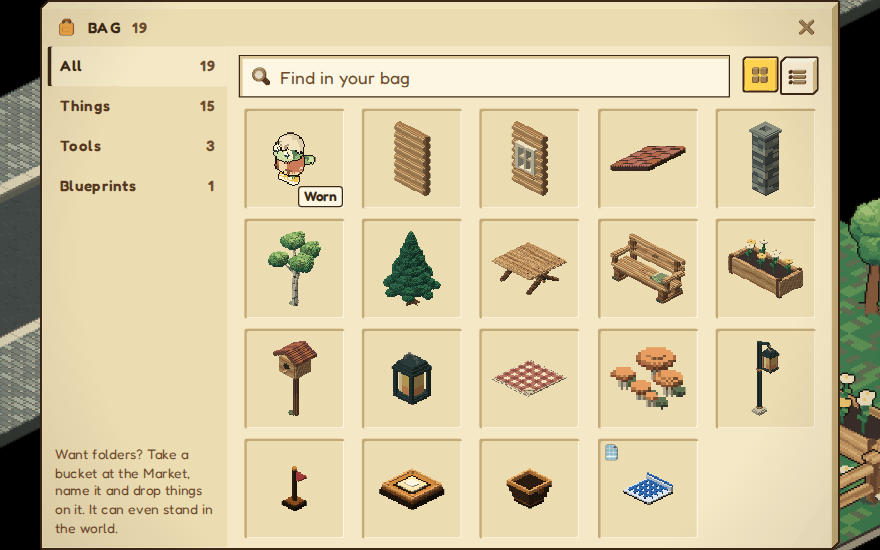
- Open a blueprint from your bag. The Studio opens with an empty grid.
- Place cubes, paint them, add frames if you want it to animate. Turn it around to check every side.
- Save as you go. Every version is kept.
- When it's finished, publish it. A published design can't be changed any more.
- Your design is in your bag, once. Drag it into the world as often as you like: it stays in your bag every time.
One design, one blueprint
Every time you save, the Studio checks each frame. If a frame is exactly the same as a frame of somebody else's blueprint (the outside you can see, and its colours), it won't save, and the Studio tells you which frame. Filling the inside differently doesn't make it a new design.
Frames you haven't changed from a starter character, and frames that are nearly empty, are free for everyone to use. Your own blueprint never clashes with itself.
What it can be
- Furniture and objects Put them down on your land, in your spaces, in your experiences.
- Hats and bodies Design a wearable and equip it from your bag; everyone sees you in it.
- Characters A whole new body for your avatar.
Good to know
- Everything you make carries your name.
- The eggox CLI lets you, or an AI agent working for you, build and save designs from your own computer. The Studio's CLI panel shows the commands for the open item.